
Pin Up APK Install Guide: Android Step by Step

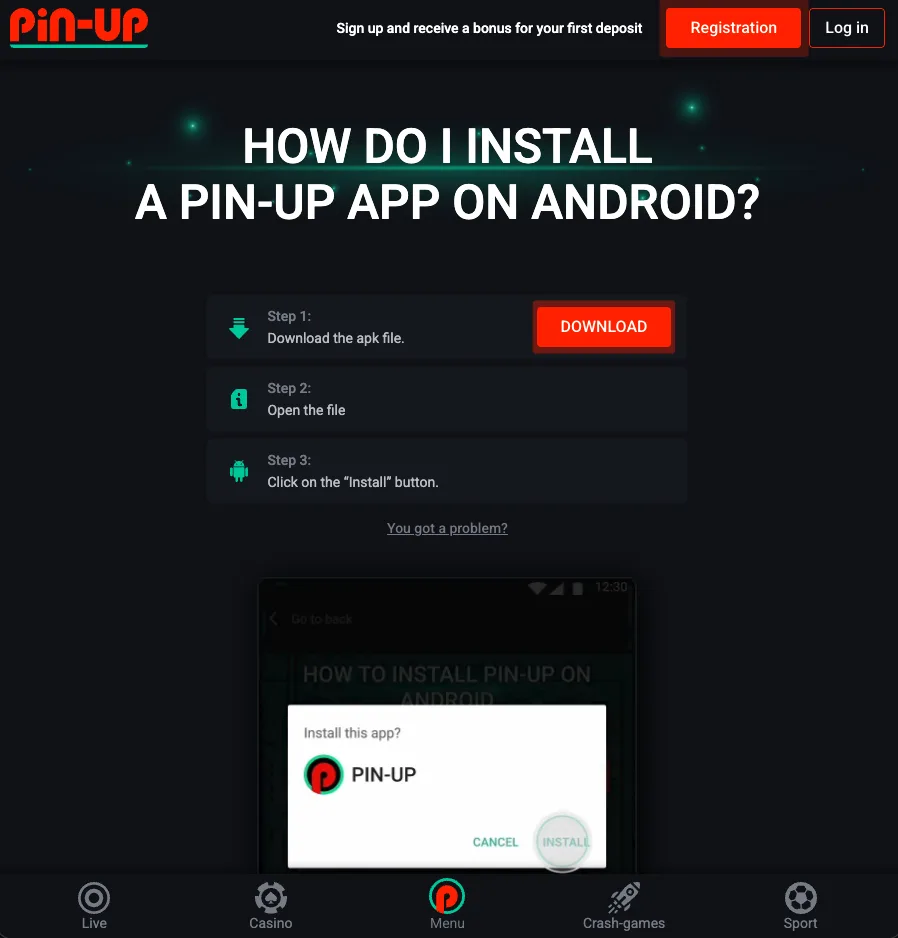
Six steps from download to a running Pin Up app on your Android phone. I've run this flow on Pixel 6a (Android 14 stock), Redmi Note 12 (Android 13 MIUI), and Samsung A14 (Android 11 OneUI) while on Jio, Airtel, and Vivo residential connections in India, Brazil, and Georgia. The steps below cover every Android version from 7 through 14 — the only thing that changes per version is the exact settings path for "Install from Unknown Sources", which I've documented below.
Before You Start: System Check
Confirm three things before downloading:
- Android version 7.0 or higher. Settings → About phone → Android version.
- At least 150 MB free storage. The APK is 64.8 MB but install needs extra room.
- Stable internet connection. A download that drops halfway through is the #1 cause of "parse error" install failures.
Who This Install Guide Helps Most
If you searched for a very specific install problem, this is the fast routing map. Use it before you start reinstalling the APK three times in a row.
| Device / problem | What usually happens | Best next step |
|---|---|---|
| Samsung One UI | Extra “trust this source” prompts and deeper special-access settings | Follow the Android 11/12/13/14 path, then jump to troubleshooting if install fails |
| Xiaomi / MIUI | Extra scan dialog appears before install | Use the install flow below and keep APK safety open for hash checks |
| Pixel / stock Android | Cleanest install path but Play Protect can still warn | Use the normal path and verify the file before opening it |
| Low storage phone | App stops at “App not installed” or “Insufficient storage” | Free up space first, then retry; see error fixes |
| Country / carrier block | Mobile site or download path behaves differently by network | Check the country pages after install if the app or site behaves differently on your carrier |
If your issue is market-specific rather than device-specific, use the country notes for India, Brazil, Bangladesh and Kazakhstan. Those pages are where I keep the carrier and payment details that do not belong in a generic Android walkthrough.
Step-by-Step Install
Enable "Install from Unknown Sources"
Android blocks APK installs from anywhere other than Google Play by default. You need to grant permission to the app that will open the APK (usually Chrome for a direct download, or Files/Files by Google if you downloaded it earlier).
Android 11/12/13/14: Settings → Apps → Chrome → "Install unknown apps" → toggle on
Android 10: Settings → Apps → three-dot menu → Special access → Install unknown apps
Android 8/9: Settings → Apps & notifications → Advanced → Special app access → Install unknown apps
Android 7: Settings → Security → Unknown sources (toggle)
On MIUI (Xiaomi), there's an extra screen after you toggle the setting that warns you about installing "harmful apps". Tap "More Options → Install Without Scan" to proceed. On One UI (Samsung), the toggle is buried slightly deeper in "Special access" but the path is otherwise the same.
Download the APK
Tap the download button on the homepage or latest version page. Chrome asks "Download anyway?" because APKs aren't from Google Play — tap OK. The download starts. Wait for it to finish (about 30 seconds on a decent connection for a 65 MB file). You'll see a notification when it's done.
Verify the SHA-256
Before you install, confirm the downloaded file matches the SHA-256 I publish on the homepage. Install Hash Droid from F-Droid (or use Termux if you prefer command line). Open the APK file in Hash Droid, select SHA-256, compare the output character-by-character against the hash on the homepage. If it matches, proceed. If it doesn't, delete the file and re-download — the file was either corrupted or tampered with.
This step is optional for the trust-me crowd. For me it's non-negotiable. Five seconds of verification prevents supply-chain attacks.
Open the APK
Open your Files app or tap the download notification. Tap the Pin Up APK. Android shows an install confirmation screen listing the permissions the app requests. Review the permissions (the Pin Up app requests internet, storage, and optionally camera for document scanning). Tap "Install".
Wait for Install to Complete
Installation takes 30–60 seconds depending on your device's speed. On a Pixel 6a I see ~22 seconds. On a Samsung A14 I see ~58 seconds. If the install is taking over 2 minutes, something is wrong — see the troubleshooting page.
Open the App and Log In
Tap "Open" on the install confirmation screen, or find the Pin Up icon in your app drawer. First launch takes 5–8 seconds because the app pre-caches the lobby UI. Then you see the login screen. Log in with your existing Pin Up account or tap "Register" to create one. The app remembers your session after the first login — you won't need to re-enter credentials on subsequent launches (unless you explicitly log out).
Common Questions Before You Install
- Do I need the APK if I only play once a month? Probably not. Use the browser or the mobile site if you want less friction. See APK vs site.
- Do Samsung and Xiaomi need different APK files? No. The file is the same. What changes is the extra prompts those brands add on top of Android.
- Should I verify the hash on my phone or desktop? Either works. Phone is fine if you already have a hash app; desktop is quicker if you prefer copy/paste. The result should match exactly.
- Is this guide enough if I hit an error? For normal installs, yes. For errors like “App not installed” or parse error, go straight to troubleshooting.
Per-Android-Version Notes
Android 14 (Pixel)
Clean experience on stock Android 14. The install dialog clearly names Pin Up, the permissions list is minimal, and Play Protect doesn't nag you more than once. If Play Protect flags the APK (rare but possible), tap "Install anyway". The app launches fine and the permissions it requests after first launch are reasonable.
Android 13 (Redmi Note 12, MIUI)
MIUI adds two extra confirmation screens during install. First, MIUI asks if you want to scan the file. Tap "Install anyway" (or "Scan" if you're paranoid — the scan takes 10 seconds and should return clean). Second, after install, MIUI may show a "permission manager" popup asking you to grant notification permission. Grant it if you want push notifications from the app. Don't grant "auto-start" unless you explicitly want the app running in background.
Android 11 (Samsung A14, One UI)
One UI on older Samsungs is conservative about unknown APKs. You may see an additional "This source is not trusted" warning — this is a Samsung-specific check independent of Google Play Protect. Tap "Install anyway". The app runs fine on Android 11 but lacks a few animations that only appear on Android 12+.
Android 10 and older
Android 10 is the oldest version I currently test on the minimum-supported side. The install flow is similar but the settings path is slightly different (see above). For Android 7, 8, 9, the app still runs but some UI animations are skipped because the animation API requires Android 10.
Common Install Errors
If any of these appear, jump to the troubleshooting page for the full fix:
- "App not installed" — usually insufficient storage or a corrupted download. Re-download.
- "Parse error" — corrupted APK. Re-download and verify SHA-256.
- "Package conflicts with existing" — an older version is installed. Uninstall first or use the adb downgrade flag.
- "There was a problem parsing the package" — Android version too old for this APK. Use a version from version history that supports your Android.
- Play Protect blocks install — tap "Install anyway" or temporarily disable Play Protect in Google Play settings.
After Install
Grant notification permission on first launch if you want push notifications (live odds, cashier updates, promotions). Enable biometric login (fingerprint/face ID) in the app settings — this saves typing your password on every session. Add Pin Up to your home screen if it isn't already.
If you're in a specific country, the country pages have locale-specific tips: India, Brazil, Bangladesh, Kazakhstan.